![IncQuery logo 2022 (horizontal)-1.png]](https://www.incquery.com/hs-fs/hubfs/IncQuery%20logo%202022%20(horizontal)-1.png?height=39&name=IncQuery%20logo%202022%20(horizontal)-1.png)
 |
The Preview tab will allow you to test out the survey and make sure that it is flowing appropriately. The Preview tab has a number of features not shown to survey respondents to assist and make the testing process easy.
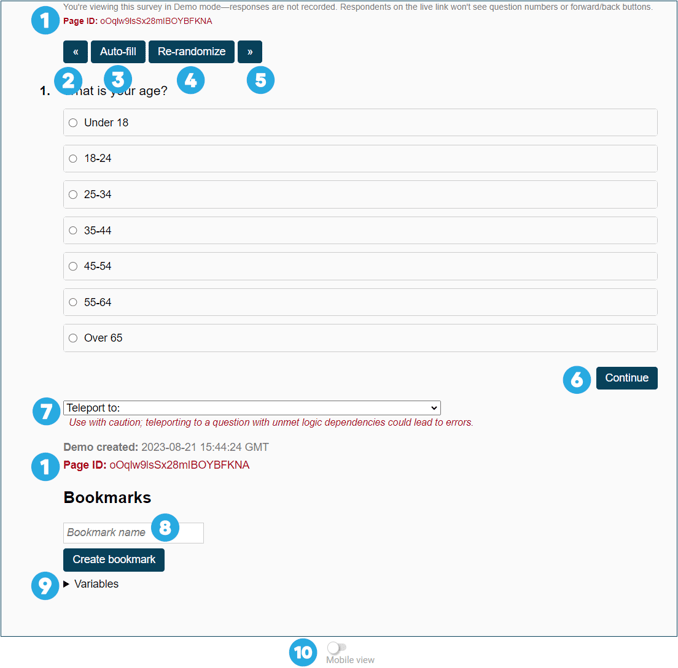 |
| #1 | Page ID - This is long string of characters uniquely identifies each page in your test run. If you spot an error please share the page ID with you coding team to help them troubleshoot |
| #2 | Back button - this button will step 1 question backward in the test run |
| #3 | Auto-fill - this button will randomly fill in the selections in the current question |
| #4 | Re-randomize - this button will reset the question and clear the selections |
| #5 | Forward button - (if available) this button will advance 1 question in the survey test run |
| #6 | Continue button - this button will submit your selections and advance to the next available question based on the survey logic |
| #7 | Teleport dropdown - This feature allow you to jump to any question in the survey. Warning: Teleporting to a question may skip over important logic for that question to be displayed properly |
| #8 | Bookmarks - this feature will allow you to save your place in a test run. By setting a bookmark you can return to a certain place in a survey. This feature is great for testing various pathways in a survey. |
| #9 | Variable Summary - This expandable table shows the variables that have been defined during testing. |
| #10 | Mobile view - This toggle switch will change the Preview to mimic the sizing of a mobile device so you can view questions from the perspective of a respondent taking the survey on a phone. |