![IncQuery logo 2022 (horizontal)-1.png]](https://www.incquery.com/hs-fs/hubfs/IncQuery%20logo%202022%20(horizontal)-1.png?height=39&name=IncQuery%20logo%202022%20(horizontal)-1.png)
New to Quality Control Flags?
Quality control flags play an essential role in survey design, and help you ensure your results are reliable and actionable. These flags help you identify responses that may be incomplete, inconsistent, or coming from inattentive survey-takers.
These checks can identify issues such as straight-lining, unusually fast completion times, and conflicting responses. When combined with a well-crafted screener section, quality control flags ensure your survey data is reliable and actionable.
Introducing Qsponse, IncQuery's Quality Control Solution
Qsponse makes it easy to apply quality control flags and monitor the quality of your responses in real-time. This lets you quickly assess respondent quality to ensure your responses come from qualified and engaged survey-takers.
We’ve designed Qsponse to work seamlessly from the start, giving you instant insights with built-in quality control flags. If you prefer more control, we give you the ability to adjust flag weights and remove responses, so you can fine-tune your quality checks and datasets.
Navigating to the Quality Control Panel
- Log into incquery.com and open your survey.
- Click the Results tab, then the Quality Control sub-tab.
Reviewing the Results
If your survey has launched, you will see a list of checks and a score to help you determine response quality.
The list includes Smart Flags—automated checks that IncQuery adds to each survey—as well as any flags you or your survey directors have added manually. Find out more about quality control checks here.
If you are using more than one panel, you’ll see breakouts for each panel.
Tip: Plan ahead by including questions that can be used for quality control flags as you create your survey—these can't be added later, and they will help identify low-quality respondents.
Optional: Adjusting Flag Weights
Qsponse will set a default Smart Weight for each quality control flag. You do not need to change these settings if you don’t want to—they're set to flag low-quality responses and provide you with useful information.
If you wish to adjust the weights, simply move the slider next to each flag.
Learn more about Smart Weights

Optional: Remove Respondents
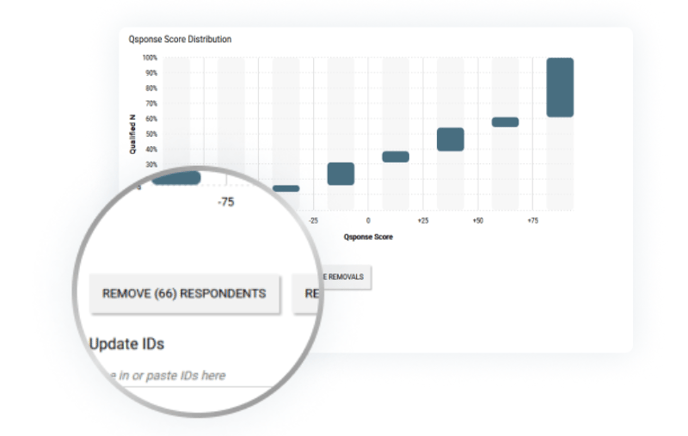
Qsponse allows you to remove data from respondents whose scores fall below a threshold. This will remove the respondents’ data from reporting, including downloaded datasets, but it does not delete the data. You can restore the excluded data at any time.
Click the “Remove Respondents” button to remove the data. The button will indicate how many respondents will be removed.
Tip: Removing respondents during fielding can reduce or eliminate the need to manually clean data after survey close.